

A Guide to the Compact 75 Keyboard
need support?
frequently asked questions
Which keyboard is this guide for?
The Compact 75 — a wireless mechanical keyboard with a control knob that connects three ways: USB-C wired, 2.4GHz, and Bluetooth. It's also sold as the SM75.
How do I pair a Bluetooth device?
Slide the mode switch on the back to BT, then hold FN + Q (device 1), FN + W (device 2), or FN + E (device 3) for 3–5 seconds until the indicator flashes. Open your device's Bluetooth settings and pick "SM75" from the list. You can keep three devices paired at once.
How do I switch between my paired Bluetooth devices?
Quick-press FN + Q, FN + W, or FN + E. A long press re-enters pairing mode for that slot; a short press just jumps to whatever is already paired there.
Wired, 2.4GHz, or Bluetooth — which should I use?
Bluetooth is the one for hopping between a laptop, tablet, and phone — up to three at once. 2.4GHz (the dongle lives in a slot on the back) gives you low-latency wireless for gaming. Wired means no battery to think about.
Does the SM75 work with both Mac and Windows?
Yes. There's a physical Win / Mac switch on the back — flip it to match your computer before you connect. The Win and Alt keys swap position to match the layout, and the F-row media shortcuts follow whichever mode you've picked.
How do I check the battery level?
Press FN + Alt in any wireless mode and the keyboard shows you the current charge.
How big is the battery and how long does it last?
5000mAh. Runtime depends almost entirely on the RGB — drop the brightness or switch the backlight off and it stretches dramatically. Full brightness burns through it much faster.
Can I type while it charges?
Yes. Plug in the USB-C cable and keep going in wired mode while it tops up.
How do I change the RGB lighting?
Press FN + \ or press the knob to cycle the lighting effects. FN + Delete changes the effect colour; FN + Cmd changes the backlight colour. Hold the knob for 3 seconds to put it in lighting mode, then turn it to set brightness. There's no on-board saturation control — for custom colours and saturation use the driver software in wired mode.
Why is the knob changing the brightness instead of the volume?
Press and hold the knob for 3 seconds to switch it between multimedia mode and lighting mode. In multimedia mode, turn for volume and press to cycle the lighting effects. In lighting mode, turn to set the brightness.
A key feels loose or stopped working — what should I do?
Try a different connection mode and a factory reset first. If a key still isn't registering, contact support — please don't open up or disassemble the keyboard, as that can cause further damage.
Is the Compact 75 good for long nails?
Yes. The compact layout keeps everything within reach, so your hands stay centered and your nail-to-key angle stays consistent — less stretching, cleaner presses. The knob handles volume without reaching for a function row.
The keyboard won't turn on or connect — what do I do?
Charge it over USB-C for 15–20 minutes first, then check the connection switch on the underside is set to the mode you're using. If it still won't connect, do a factory reset, and contact support if that doesn't fix it.
The keyboard isn't responding at all — what do I check?
First, make sure the switch on the back matches how you're connecting (wired / 2.4G / BT). Then press FN + Alt to check the charge — if it's flat, plug in the USB-C cable and give it 15–20 minutes before trying again. After a long spell in a drawer, a wireless board can need that top-up before it wakes.
The 2.4GHz dongle won't connect.
Reseat the receiver in a different USB port, set the back switch to 2.4G, and confirm the keyboard has charge. The dongle pairs automatically once it's detected — there's no key combo to press.
My keys are typing the wrong symbols.
That's the Win / Mac switch on the back — it's set to the other operating system. Flip it to match your computer. The Win and Alt keys will swap position to match the layout, which is expected.
Is there a factory reset?
The manual doesn't document a reset shortcut for the SM75. To start fresh over Bluetooth, remove the "SM75" entry from your device and re-pair with FN + Q / W / E. If something still isn't right, reach out and we'll help.
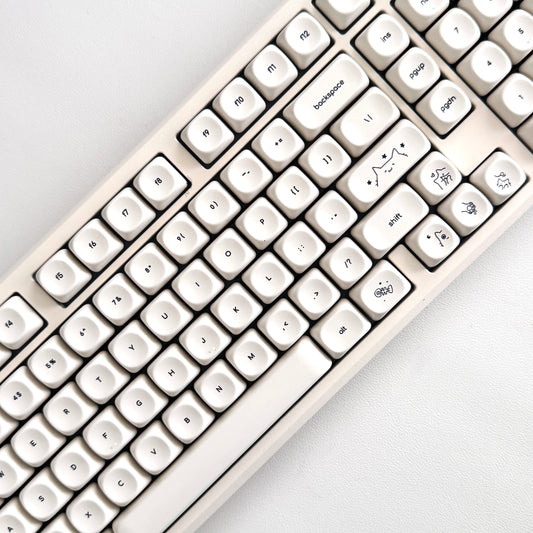
Creamy Keycaps & Wireless Keyboards
-
The Creamy Paw
Regular price From $340.00 USDRegular price$280.00 USDSale price From $340.00 USD -
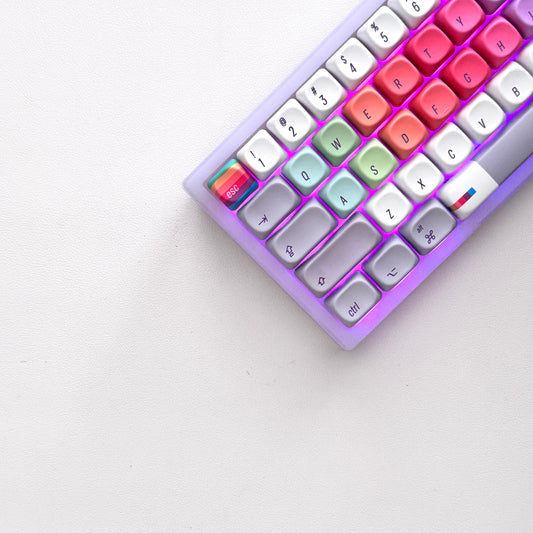
The Retro Finder Keyboard
Regular price From $195.00 USDRegular price$280.00 USDSale price From $195.00 USDSale -
The Ultra Violet Keyboard
Regular price From $195.00 USDRegular price$280.00 USDSale price From $195.00 USDSale -

 Sale
SaleThe Atlas Keyboard
Regular price From $195.00 USDRegular price$280.00 USDSale price From $195.00 USDSale




companions for the keys.
40oz of stainless steel, engraved one at a time. Four colorways, four moods.
-

All Substance · Cream
Regular price $60.00 -
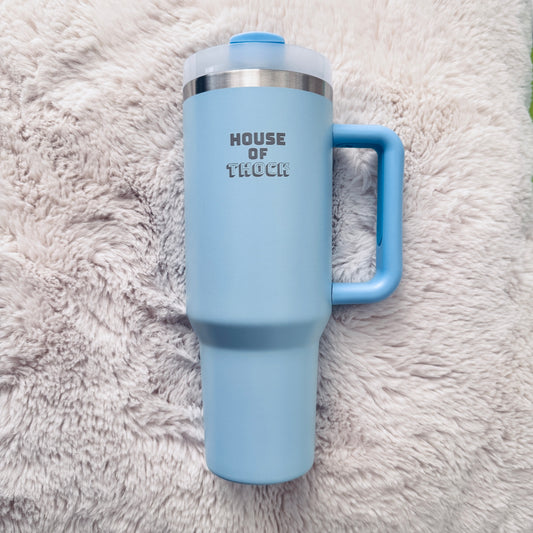
House of Thock · Powder Blue
Sale price $45.00 Regular price$60.00Sale -
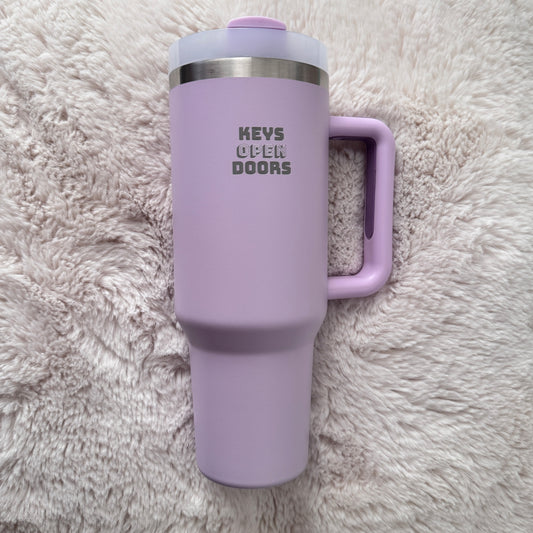
Keys Open Doors · Lilac
Sale price $45.00 Regular price$60.00Sale -
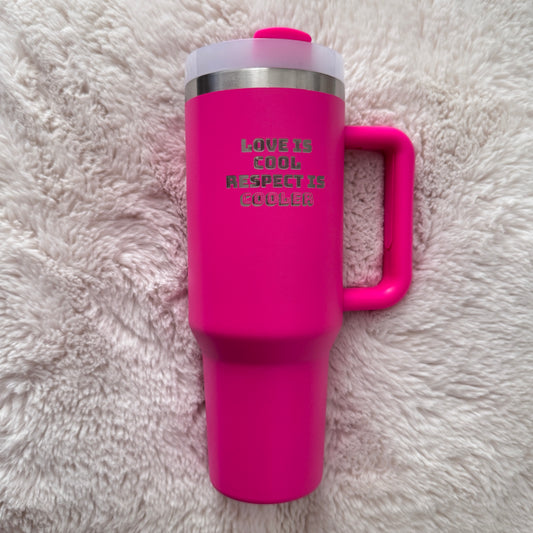
Love Is Cool · Hot Pink
Sale price $45.00 Regular price$60.00Sale


