

A Guide to the Compact Keyboard
need support?
frequently asked questions
Which keyboard is this guide for?
The Compact — a wireless mechanical keyboard with a control knob and VIA support.
How do I pair a Bluetooth device?
Slide the connection switch to BT, then press FN + W (device 1), FN + E (device 2), or FN + R (device 3) — the matching key flashes rapidly. Pick the keyboard from your device's Bluetooth list. When it connects, the key backlight syncs with the overall backlight. You can keep three devices paired at once.
How do I switch between my paired Bluetooth devices?
Press FN + W, FN + E, or FN + R to jump between the three channels.
How do I set up the 2.4GHz receiver?
Slide the switch to 2.4G, press and hold FN + Q until the Q key flashes quickly, then plug the receiver into a USB port. It connects on its own — the key backlight syncs with the overall backlight once it's done.
Wired, 2.4GHz, or Bluetooth — which should I use?
Wired (switch to USB) means no battery to think about. 2.4GHz is the one for gaming — wireless with low latency. Bluetooth is for hopping between a laptop, tablet, and phone.
Does it work with both Mac and Windows?
Yes. Press FN + A for Windows mode or FN + S for Mac mode — this remaps the modifier keys and the function-row shortcuts. There's no physical switch; it's the key combo. If your keys are typing the wrong symbols, you're in the wrong mode.
How do I check the battery level?
Press FN + Enter and the keyboard shows the current charge.
What do the indicator lights mean?
Caps Lock glows white when it's on. While charging, a solid red light means charging and a solid green light means full. A flashing red light means the battery is critically low (below 3.3V) — charge it now.
How do I change the RGB effect or colour?
Press FN + Backspace to cycle the backlight effects and FN + Delete to change the colour. You can also press and hold the knob for 3 seconds to put it in backlight mode, then turn it to scroll through effects. Brightness and animation speed are set in VIA.
Why is the knob cycling my lighting instead of changing the volume?
Press and hold the knob for 3 seconds to switch it between multimedia mode and backlight mode. In multimedia mode, turn for volume and press to mute. In backlight mode, turn to cycle the lighting effects.
A key feels loose or stopped working — what should I do?
Try a different connection mode and a factory reset first (FN + Space, hold 3 seconds). If a key still isn't registering, contact support — please don't open up or disassemble the keyboard, as that can cause further damage.
Can I remap the keys?
Yes — this keyboard is VIA-compatible, so every key and the knob can be reprogrammed. A full remapping walkthrough is on the way; in the meantime you can use usevia.app with the Q61 V2 configuration file.
How do I factory reset it?
Press and hold FN + Space for 3 seconds to restore the keyboard to its default settings.
Is the Compact good for long nails?
Yes. The compact layout keeps everything in reach, so your hands stay centered and your nail-to-key angle stays consistent — less stretching, cleaner presses. The knob handles volume without reaching for a function row.
Creamy Keycaps & Wireless Keyboards
-
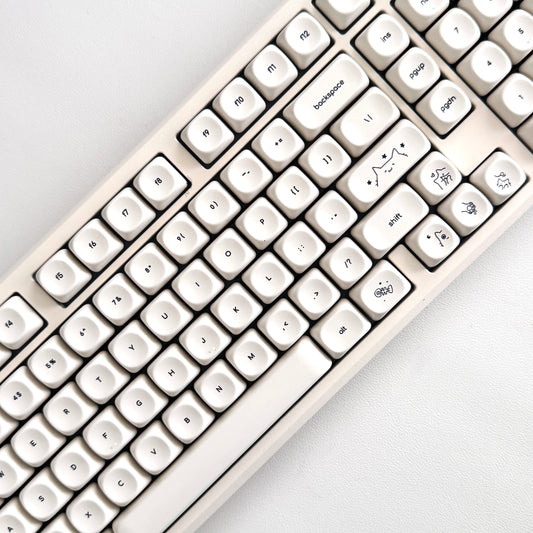
The Creamy Paw
Regular price From $340.00 USDRegular price$280.00 USDSale price From $340.00 USD -
The Retro Finder Keyboard
Regular price From $195.00 USDRegular price$280.00 USDSale price From $195.00 USDSale -
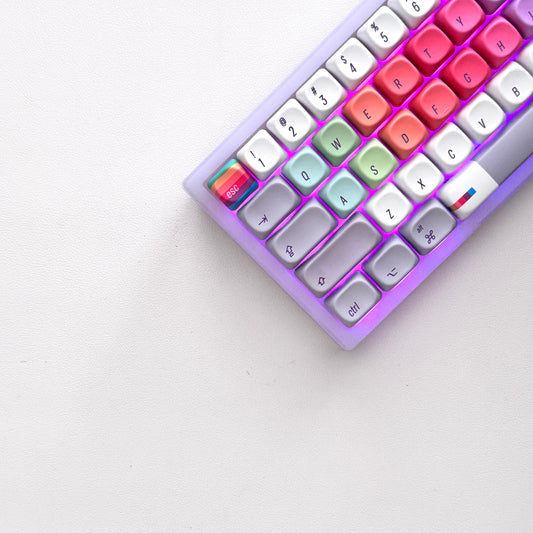
The Ultra Violet Keyboard
Regular price From $195.00 USDRegular price$280.00 USDSale price From $195.00 USDSale -

 Sale
SaleThe Atlas Keyboard
Regular price From $195.00 USDRegular price$280.00 USDSale price From $195.00 USDSale




companions for the keys.
40oz of stainless steel, engraved one at a time. Four colorways, four moods.
-
Sale
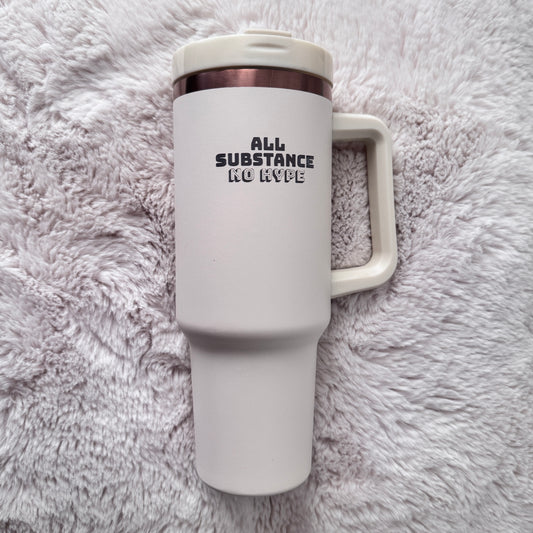
All Substance · Cream
Sale price $45.00 Regular price$60.00 -
Sale
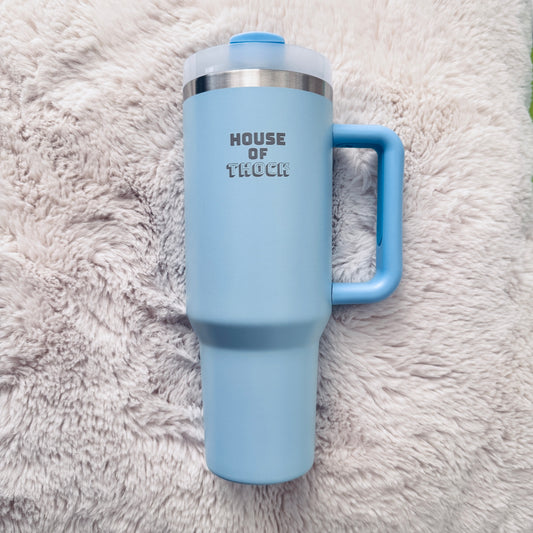
House of Thock · Powder Blue
Sale price $40.00 Regular price$60.00 -
Sale
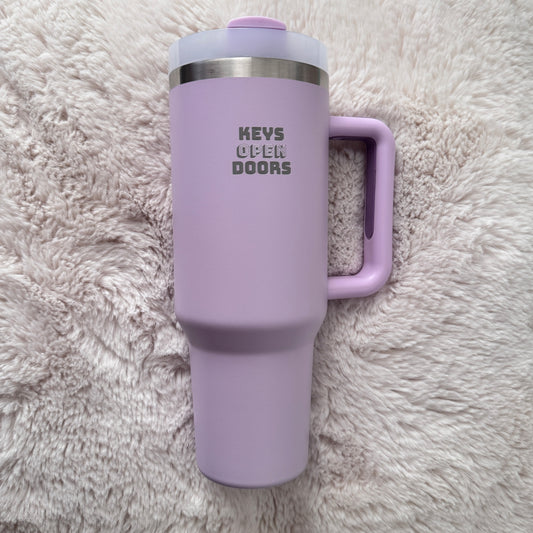
Keys Open Doors · Lilac
Sale price $40.00 Regular price$60.00 -
Sale
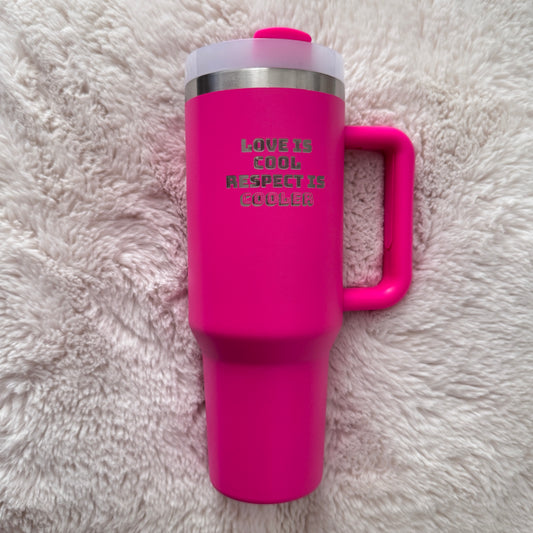
Love Is Cool · Hot Pink
Sale price $40.00 Regular price$60.00
companions included.
Keyboard-and-tumbler pairs, matched by mood — $20 kinder than buying separately.


