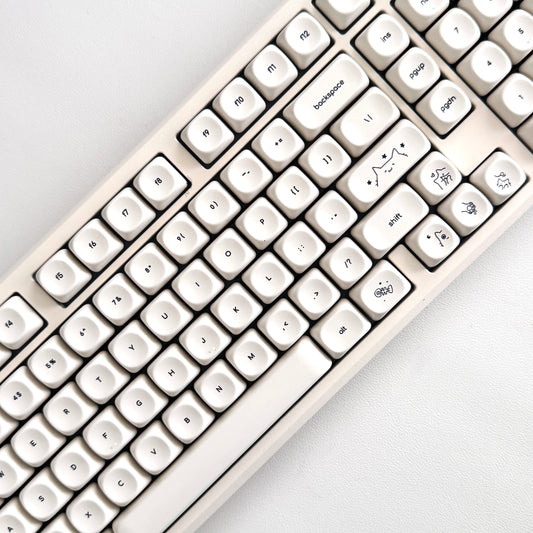
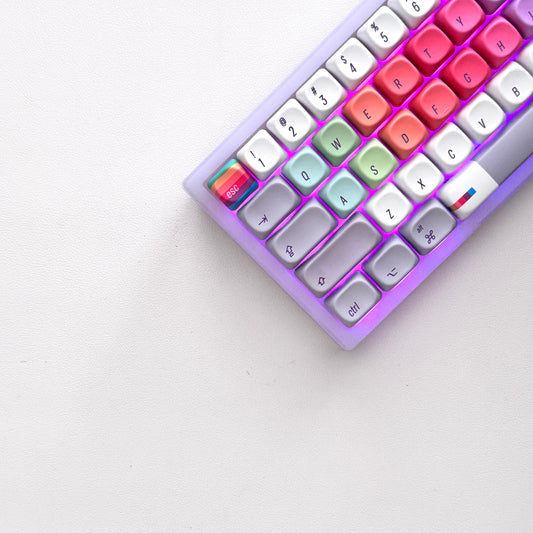
A Guide to the Full 108 Pro Keyboard

Quick Start Guide

What's in the Box

  • 104-Key Mechanical Keyboard with 1.14" LCD Screen
  • USB-C to USB-A Braided Cable (1.8m)
  • 2.4GHz Wireless Receiver
  • Switch Puller Tool
  • Keycap Puller Tool
  • User Manual

First-Time Setup

Ready to Use: Your keyboard is pre-charged and features a 1.14" LCD screen in the upper right corner for easy connection management and system information. Hot-swappable switches and keycaps allow full customization.
  1. Remove protective film from keyboard and LCD screen
  2. Power on keyboard using power switch on back
  3. LCD screen activates showing date, time, and battery level
  4. Use scroll wheel/knob to navigate LCD menu for connection mode
  5. Select connection mode (Bluetooth/2.4GHz/Wired) via LCD menu
  6. For Mac: Use LCD menu to switch system (WIN/MAC/iOS/Android)

LCD Screen Navigation

LCD Display Information

The 1.14" LCD screen in the upper right corner displays:

  • Date (Year/Month/Day format)
  • Current time (Hour/Minute/Second)
  • Battery level with visual indicator
  • Current system (WIN/MAC/iOS/Android)
  • Connection mode (Wired/2.4G/BT1/BT2/BT3)
  • WIN key lock status
  • Case/Caps Lock indication
  • Num Lock indication

Navigating the LCD Menu

Use the scroll wheel/knob to navigate through LCD menus:

  1. Scroll the knob: Move through menu options
  2. Short press the knob: Confirm selection or OK
  3. Return to previous menu: Automatically after selection

LCD Menu Options

Menu Option Function
Connect Choose connection mode (Wired/2.4G/BT1/BT2/BT3)
System Select device OS (WIN/MAC/iOS/Android)
Effect Choose from 20 RGB lighting effects
Color Switch backlight color (rainbow effect does not support color switching)
Brightness Adjust RGB brightness (clockwise +, counterclockwise -)
Speed Adjust animation speed (clockwise +, counterclockwise -)
Volume Adjust system volume (clockwise increase, counterclockwise decrease)
Language Switch between Chinese/English screen language

Connection Modes

Wired Mode

  1. Scroll the knob to select "Connect" - "Wired Mode"
  2. Short press the knob to confirm
  3. Insert USB-C cable into keyboard and computer within 5 seconds
  4. LCD displays "USB Success" if connection successful, or "USB Fail" if not inserted to show the failure message
  5. Connection is successful when line icon is highlighted in main menu

2.4GHz Wireless Mode

  1. Scroll the knob to select "Connect" - "2.4G Mode"
  2. Short press the knob
  3. LCD displays "2.4G Linking"
  4. Plug in the 2.4GHz receiver to computer USB port
  5. LCD displays "2.4G Success" when connected
2.4G Pairing: If you need to re-pair the receiver, scroll to "Connect" - "2.4G Mode", then press and hold the knob for 5 seconds. LCD shows "2.4G pairing" - keep the distance between receiver and keyboard within 20cm during pairing.

Bluetooth Mode (3 Devices)

  1. Scroll the knob to select "Connect" - "BT1" (or BT2/BT3 for additional devices)
  2. Press and hold the knob for 5 seconds
  3. LCD displays "BT1 pairing" with blinking indicator
  4. Open Bluetooth settings on your device
  5. Select "LB-K108PRO" from available devices
  6. LCD displays "BT1 Success" when paired

Bluetooth Link Back

To reconnect to a previously paired Bluetooth device:

  1. Scroll the knob to select "Connect" - "BT1"
  2. Short press the knob
  3. LCD displays "BT1 Linking" with blinking indicator
  4. Keyboard automatically reconnects to paired device
  5. LCD displays "BT1 Success" when connection restored
Deleting Paired Devices: To delete a Bluetooth device, navigate to the respective BT mode in Bluetooth mode settings, then re-pair a new device to replace the old one by default.

Keyboard Layout & Function Keys

104-Key Layout

  • Standard QWERTY layout
  • Dedicated number pad (right side)
  • Full function row (F1-F12)
  • Dedicated arrow cluster with navigation keys
  • Print Screen, Scroll Lock, Pause Break
  • Insert, Delete, Home, End, Page Up, Page Down
  • 1.14" LCD display in upper right corner
  • Scroll wheel/knob for navigation and volume
  • Hot-swappable switches (gasket structure)
  • DIY-friendly with driver support

System Switching via LCD

  1. Scroll the knob to select "System"
  2. Navigate to WIN/MAC/iOS/Android
  3. Short press knob to confirm system selection
  4. Keyboard adjusts modifier key positions and function mappings automatically
Mac/iOS Compatibility: When switched to Mac/iOS system, Left WIN/Left ALT positions are swapped. MacOS/iOS/Android does not lock WIN key.

Windows System - Function Keys

Key Position Single Press FN Key Combo
F1 F1 Desktop
F2 F2 Mail
F3 F3 Convert window
F4 F4 Open Explorer
F5 F5 Light Brightness-
F6 F6 Light Brightness+
F7 F7 Previous song
F8 F8 Play/Pause
F9 F9 Next song
F10 F10 Mute
F11 F11 Volume-
F12 F12 Volume+

Android/MacOS/iOS System - Function Keys

Key Position Single Press FN Key Combo
F1 Screen brightness- F1
F2 Screen brightness+ F2
F3 Convert window F3
F4 Back to Desktop F4
F5 Light Brightness- F5
F6 Light Brightness+ F6
F7 Previous song F7
F8 Play/Pause F8
F9 Next song F9
F10 Mute F10
F11 Volume- F11
F12 Volume+ F12

Special FN Combinations

Key Combination Function
FN + ESC Press and hold for 3 seconds to restore factory default settings and display boot screen (original connected Bluetooth devices will not be cleared)
FN + WIN Lock WIN key
FN + Scroll Wheel Switch scroll wheel function: (1) Adjusting screen - rotate to adjust menu, short press to confirm, return to previous menu; (2) Adjusting Volume - rotate to adjust volume

RGB Backlighting

20 RGB Lighting Effects

Navigate to "Effect" in the LCD menu to select from 20 lighting effects:

Effect Name Description
Adrift (Default) Gentle drifting color effect
Mountain peaks detours Wave pattern across keyboard
Be touch-and-go Reactive typing effect
Kill two birds with one stone Dual-direction wave effect
Ripple spread Ripple effect from center
A continuous flow Flowing color effect
Precipitous mountains Mountain wave pattern
Gentle wind and light rain Subtle color transitions
Shuttle back and forth Back-and-forth animation
Constant light mode Static color (speed adjustment not supported)
Single light up Individual key illumination
Single off Turn off single keys
Many stars Starfield effect
Sky snow Falling snow pattern
Flowers are blooming Blooming flower effect
Breathing pattern Breathing fade effect
Spectral cycle Color spectrum rotation
Rainbow surges Rainbow wave effect
Colorful alternation Alternating color patterns
Close Turn off all lighting

RGB Control via LCD Menu

  • Effect: Scroll knob to select from 20 lighting effects
  • Color: Scroll knob to switch backlight color (rainbow effect does not support color switching)
  • Brightness: Scroll knob - rotate clockwise to increase (+), counterclockwise to decrease (-)
  • Speed: Scroll knob - turn clockwise for speed +, counterclockwise for speed - (constant mode light effect does not support speed adjustment)

RGB Control via Keyboard Shortcuts

Main Function Keys Side Light Function Keys
Toggle light effect FN + \| Toggle light effect FN + Shift(R)
Switching Colors FN + TAB Toggle Color FN + / ?
Brightness + FN + ↑ Toggle Brightness FN + Alt(R)
Brightness - FN + ↓

Speed- FN + ← Switching speed FN + Ctrl(R)
Speed+ FN + →

Battery Optimization: Select "Close" from the Effect menu or lower brightness significantly to extend battery life in wireless modes.

Volume Knob & LCD Functions

Dual-Function Scroll Wheel

The scroll wheel/knob serves two primary functions that can be toggled using FN + Scroll Wheel:

Function 1: Screen Navigation (Default when LCD menu active)

  • Rotate knob: Navigate through LCD menu options
  • Short press: Confirm selection (OK) and return to previous menu
  • Menu structure: Connect, System, Effect, Color, Brightness, Speed, Volume, Language

Function 2: Volume Control

  • Rotate clockwise: Increase system volume
  • Rotate counterclockwise: Decrease system volume
  • Access via LCD: Scroll to "Volume" in menu, then rotate knob to adjust
Switching Functions: Press FN + Scroll Wheel to toggle between Screen Navigation mode (for adjusting menus) and Volume mode (for audio control). The current mode is indicated by the LCD screen context.

need support?

Let's get you up and running. Talk to us.

frequently asked questions

How do I switch between RGB color modes?

Navigate to "Effect" in the LCD menu to choose from 20 lighting effects. You can also use FN + \| to cycle through effects via keyboard shortcuts. Adjust brightness (FN + ↑/↓), speed (FN + ←/→), and color (FN + TAB) with keyboard shortcuts.

How do I switch between Bluetooth devices?

Three Bluetooth devices (BT1, BT2, BT3). Navigate to "Connect" in LCD menu, select desired BT channel, and hold the knob for 5 seconds to enter pairing mode. The pairing name is "LB-K108PRO".

How do I use this keyboard with a Mac?

Navigate to "System" in the LCD menu and select WIN, MAC, iOS, or Android. The keyboard automatically adjusts modifier key positions and function mappings for the selected system.

How many devices can I pair?

Three Bluetooth devices (BT1, BT2, BT3). Navigate to "Connect" in LCD menu, select desired BT channel, and hold the knob for 5 seconds to enter pairing mode. The pairing name is "LB-K108PRO".

How do I know when the battery is low?

Red light shows when battery level drops below 20%. Connect USB cable to charge. Red light remains on while charging.

Why won't my 2.4GHz connection work?

Ensure you've selected "Connect" - "2.4G Mode" in the LCD menu before plugging in the receiver. If pairing fails, scroll to "2.4G Mode" and press and hold the knob for 5 seconds to enter pairing mode. Keep the receiver within 20cm of the keyboard during pairing.

Will this work with Figma/Adobe/Sketch shortcuts?

Yes. All modifier keys present. Custom shortcuts work identically to full-size boards. Function layer provides access to F-keys for application-specific commands.

How do I control volume?

Toggle the knob function using FN + Scroll Wheel to switch to Volume mode, then rotate the knob clockwise to increase volume or counterclockwise to decrease. You can also navigate to "Volume" in the LCD menu.

Can I use this while charging?

Yes, connect USB-C cable and continue typing. Charging takes approximately 3 hours to full capacity.

Does this work with iPad/Android tablets?

Yes. Connect via Bluetooth and select the appropriate system in the LCD menu (iOS for iPads, Android for Android tablets). The keyboard supports all devices with external keyboard capability.

What's the difference between wired and 2.4GHz modes?

Wired provides unlimited power and zero battery concerns. 2.4GHz offers wireless freedom with gaming-grade latency (typically 1-3ms). Bluetooth adds multi-device switching but slightly higher latency (8-15ms).

Long nail compatibility?

Excellent for long nails. The centered typing position keeps hands naturally aligned, and the dedicated number pad means you're not reaching across smaller layouts. Consistent key spacing and standard finger positioning reduce strain on nail extensions. The gasket structure provides a soft, delicate feel that's comfortable for extended typing sessions.