

A Guide to the Full 100 Aluminum Keyboard
need support?
frequently asked questions
How do I switch between RGB color modes?
Use FN + ENTER to cycle through backlight effects, FN + T to toggle lights on or off, FN + ↑ / ↓ to adjust brightness, and FN + ← / → to control animation speed. On supported effects, use FN + \ to change colors.
How do I switch between Bluetooth devices?
Quick press FN + Q/W/E to switch between three paired Bluetooth devices. Channel indicator: Q = Blue, W = Green, E = Red.
How do I switch between Mac and Windows?
Yes. Press FN + S for Mac mode or FN + A for Windows mode. In Mac mode, the F-row defaults to system controls (brightness, media, Launchpad, etc.). In Windows mode, F-keys work as standard function keys and FN + F-row activates app shortcuts.
How many devices can I pair?
Short press FN + Q, FN + W, or FN + E to switch between your three paired Bluetooth devices instantly. To pair a new device on any of those slots, long press the corresponding combination until the keyboard enters pairing mode.
Does it have a numpad?
Yes. A full numpad is included. The layout keeps the bottom row aligned while compacting the direction keys flush against the right shift — no dropped arrow cluster. Del, Home, End, Print Screen, Insert, Page Up, and Page Down are all present.
How do I know when the battery is low?
Red light shows when battery level drops below 20%. Connect USB cable to charge. Red light remains on while charging.
How do I check the battery level?
Press FN + SPACEBAR. The battery indicator will display on the keyboard.
What about arrow keys for coding?
65% keyboards include dedicated arrow keys - no function layer required. Perfect for navigating code, selecting text, and moving through terminal commands. Unlike 60% boards, you get immediate arrow access without memorizing key combinations.
Why did my Bluetooth connection drop?
After 30 minutes without activity, keyboard enters sleep mode and Bluetooth disconnects. Press any key to wake and reconnect.
Will this work with Figma/Adobe/Sketch shortcuts?
Yes. All modifier keys present. Custom shortcuts work identically to full-size boards. Function layer provides access to F-keys for application-specific commands.
What does the volume knob control?
Volume only. Turn to adjust, press to mute. RGB controls are FN + arrow combinations. Simple, immediate, tactile.
Can I use this while charging?
Yes, connect USB-C cable and continue typing. Charging takes approximately 3 hours to full capacity.
How do I check if my keyboard needs charging?
Press ENTER key. If backlight doesn't activate, battery is depleted and needs charging.
Does this work with iPad/Android tablets?
Yes, connects via Bluetooth or USB-C (with compatible adapter) to any device supporting external keyboards.
What's the difference between wired and 2.4GHz modes?
Wired provides unlimited power and zero battery concerns. 2.4GHz offers wireless freedom with gaming-grade latency (typically 1-3ms). Bluetooth adds multi-device switching but slightly higher latency (8-15ms).
What's the difference between Bluetooth and 2.4G mode?
Both are wireless, but 2.4G runs at 1000hz polling rate (same as wired) — better for low-latency workflows. Bluetooth runs at 125hz and connects without a receiver, which is more convenient for switching between devices like a tablet or phone.
Is this good for long nails?
Excellent. It's what we do. The 100-key layout keeps standard key spacing and full-size key access without the compromises of compact layouts. No function-layer remapping on the core keys means no surprises mid-workflow.
Is this good for travel or on-the-go use?
It's wireless and built from aluminum, so it's sturdy and cord-free — but the full layout and solid chassis are designed for stability and staying put on a desk. If portability is the priority, our compact 65% boards are the move. The Ultra Violet and The Retro Finder are built for exactly that: lighter, smaller, and just as satisfying to type on — available in Studio Silent for a noise-free setup or Studio Thock for that deep, resonant sound.
Can I use VIA to remap keys?
Yes. Download the keyboard JSON file and load it into VIA to configure custom layouts and key assignments.
Creamy Keycaps & Wireless Keyboards
-
The Creamy Paw
Regular price From $340.00 USDRegular price$280.00 USDSale price From $340.00 USD -
The Retro Finder Keyboard
Regular price From $175.00 USDRegular price$280.00 USDSale price From $175.00 USDSale -
The Ultra Violet Keyboard
Regular price From $195.00 USDRegular price$280.00 USDSale price From $195.00 USDSale -

 Sale
SaleThe Atlas Keyboard
Regular price From $195.00 USDRegular price$280.00 USDSale price From $195.00 USDSale

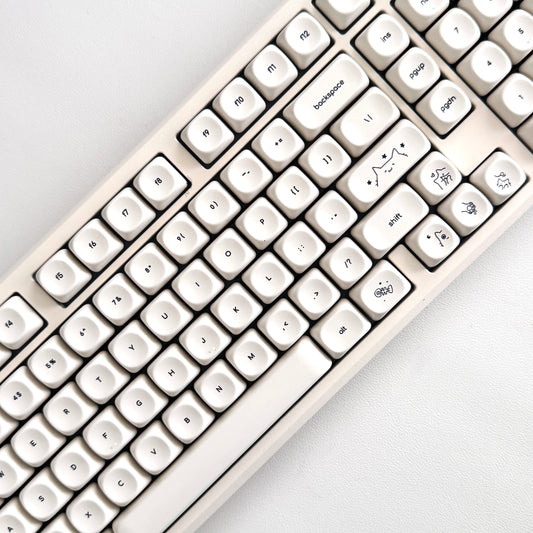

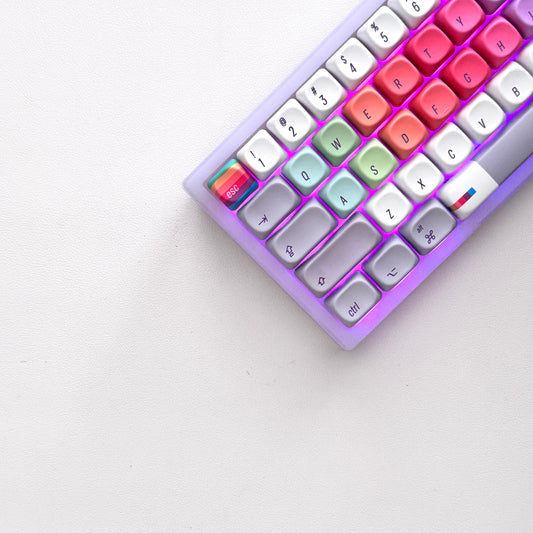


companions for the keys.
40oz of stainless steel, engraved one at a time. Four colorways, four moods.
-
Sale

All Substance · Cream
Sale price $45.00 Regular price$60.00 -
Sale
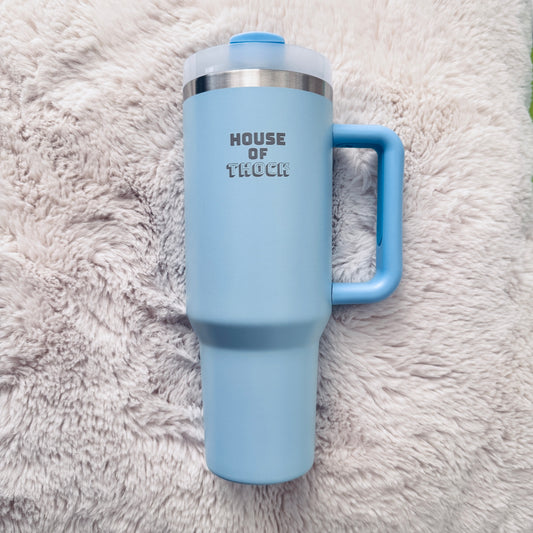
House of Thock · Powder Blue
Sale price $40.00 Regular price$60.00 -
Sale
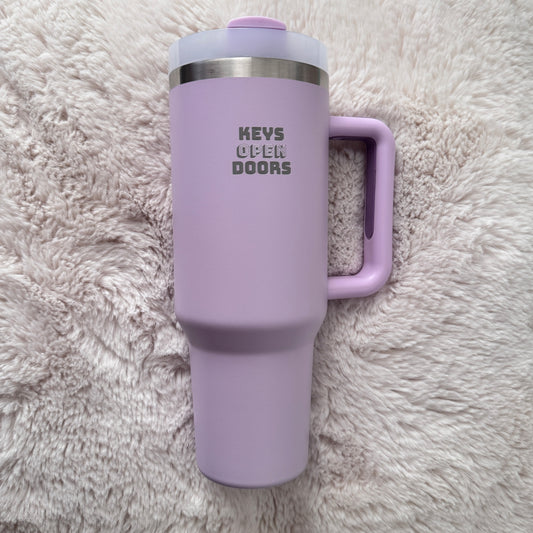
Keys Open Doors · Lilac
Sale price $40.00 Regular price$60.00 -
Sale
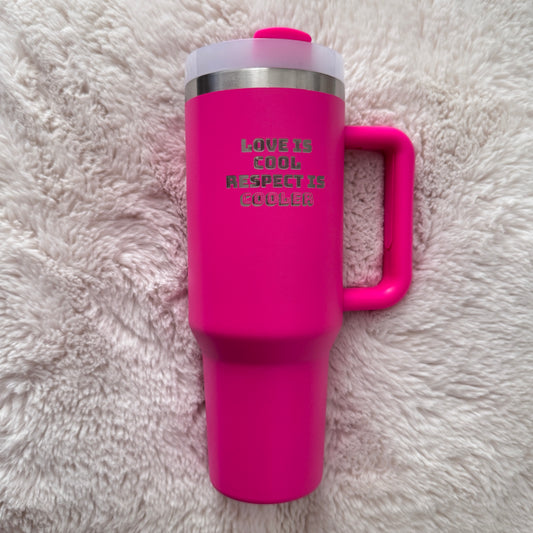
Love Is Cool · Hot Pink
Sale price $40.00 Regular price$60.00
companions included.
Keyboard-and-tumbler pairs, matched by mood — $20 kinder than buying separately.


