

A Guide to the SM75 Wireless Mechanical Keyboard

The SM75 is a 75% wireless mechanical keyboard — gasket-mounted, hot-swap, and triple-mode (USB-C, 2.4GHz, Bluetooth). This guide covers first-time setup, pairing, the control knob, RGB, and the full FN layer. Deciding between frame sizes? Compare it with the Compact 67 and the Full 108.

Quick Start Guide

What's in the Box

  • SM75 75% Wireless Mechanical Keyboard (with control knob)
  • USB-A to USB-C Cable
  • 2.4GHz Wireless Receiver (stored in a slot on the underside)
  • 2-in-1 Keycap & Switch Puller
  • Spare Keycaps and Switches (model dependent)
  • User Manual & Warranty Card

Specifications

  • Layout: 75% (82 keys + knob)
  • Mount: Gasket-mounted, 5-layer sound dampening
  • Switches: Pre-lubed, hot-swappable (3-pin & 5-pin)
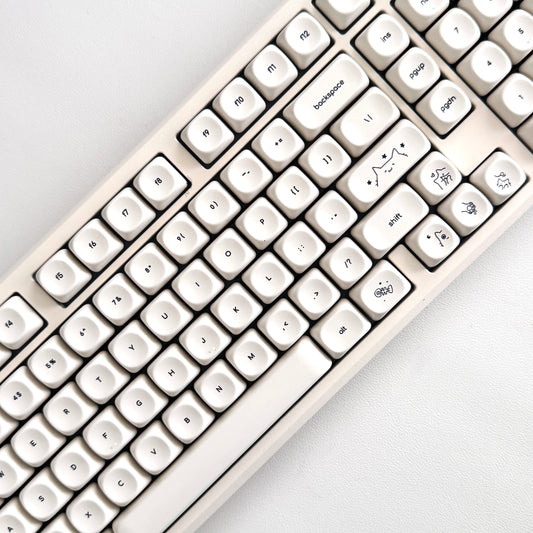
  • Keycaps: Double-shot PBT, Cherry profile
  • Connectivity: Bluetooth 5.0, 2.4GHz RF, USB-C wired
  • Bluetooth devices: Up to 3
  • Battery: 5000mAh lithium-polymer
  • Lighting: South-facing RGB, 16 effects, 16.8M colors

First-Time Setup

  1. Set the Win / Mac switch on the underside to match your computer (see Windows / Mac Switch)
  2. Slide the connection switch on the underside to your mode: wired, 2.4G, or BT
  3. Pair with your device using the instructions in Connection Modes
  4. In wireless mode, press FN + Alt at any time to check the battery level

Connection Modes

The SM75 supports three connection modes: USB-C wired, 2.4GHz wireless, and Bluetooth 5.0. A switch on the back of the keyboard selects the mode.

Wired Mode

  1. Slide the mode switch to wired
  2. Connect the USB-C cable to the keyboard and your computer
  3. The keyboard is recognized automatically — no drivers required

2.4GHz Wireless Mode

  1. Take the 2.4GHz receiver out of the storage slot on the underside of the keyboard
  2. Plug the receiver into an available USB port on your computer
  3. Slide the mode switch to 2.4G
  4. The keyboard connects automatically — no pairing required. If it doesn't, reseat the receiver in a different USB port and make sure the keyboard is charged.

Bluetooth Mode (3 Devices)

  1. Slide the mode switch to BT
  2. Press and hold FN + Q (Device 1), FN + W (Device 2), or FN + E (Device 3) for 3–5 seconds — the matching indicator light flashes to show pairing mode
  3. Open Bluetooth settings on your device and select SM75 from the list
  4. The indicator stops flashing once pairing is complete
  5. To move between paired devices later, quick-press FN + Q / W / E
Bluetooth Pairing: Long press (3–5s) to pair a new device on a slot, short press to jump to a device already on that slot. If it won't connect, remove the old "SM75" entry from your device and pair again. If the battery is very low, charge for 15–20 minutes first.

Windows / Mac Switch

The SM75 has a physical Win / Mac switch on the underside. Set it to match your computer before connecting — it remaps the modifier keys and the function-row media shortcuts for that operating system. If your keys are typing the wrong symbols or the modifiers feel swapped, this switch is almost always the reason.

Note: When you change the Win / Mac switch, the Win and Alt keys swap position to match the OS layout. Don't use the Win-key lock (FN + WIN) while switching interfaces.

Color & Backlighting

The SM75 has south-facing RGB LEDs with 16 built-in light effects, 16.8 million colors, and a music-rhythm mode that syncs the lighting to audio. Full per-key colors and effects are set in the driver software.

Backlight Controls

Function Control
Brightness Up / Down Turn the knob clockwise / counter-clockwise
Cycle Lighting Effects Press the knob (while in RGB mode)
Cycle Side / Edge Light Modes FN + Right Ctrl
Per-key colors, custom effects, macros Driver software
Battery Saver: Lower the RGB brightness or turn the backlight off to dramatically extend wireless battery life. If the lighting looks stuck, charge the keyboard and cycle the effects with the knob.

Control Knob

The knob has two roles — lighting control and multimedia control — and you switch between them by holding it.

  • Turn: Adjusts brightness (lighting role) or volume (multimedia role)
  • Press: Cycles RGB effects, or toggles mute, depending on the current role
  • Hold for 3 seconds: Switches the knob between lighting control and multimedia control (volume up / down, mute). If the knob is changing your lighting when you want volume, this is the fix.

Keyboard Layout & Function Keys

75% Layout

  • Compact 75% layout — 82 keys plus the control knob
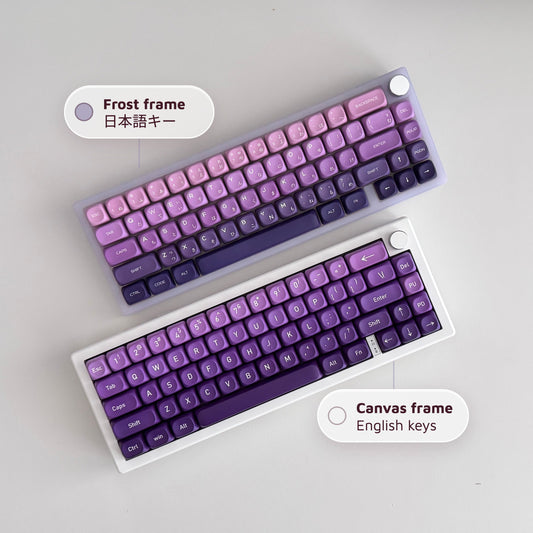
  • Sits between our Compact 67 and Full 108 frames — a full function row without the numpad width
  • Dedicated arrow keys and a function row, with navigation keys down the right edge
  • Gasket mount with a 5-layer foam stack (silicone pad, sound-absorbing sponge, IXPE switch pad, Poron foam, PET sound-enhancement pad) for a deep, quiet sound
  • Hot-swap sockets accept both 3-pin and 5-pin mechanical switches

FN Key Combinations

Key Combination Mac Function
FN + F1 / F2 Screen Brightness Down / Up
FN + F3 Calculator
FN + F4 Activate Siri
FN + F5 Show all windows (front app)
FN + F6 Search (Command + Space)
FN + F7 Next Track
FN + F8 Play / Pause
FN + F9 Stop
FN + F10 Mute
FN + F11 / F12 Volume Down / Up
FN + Alt Check battery level (wireless modes)
FN + Right Ctrl Cycle side light modes
FN + Q / W / E Bluetooth device 1 / 2 / 3 (hold 3–5s to pair)
Hold END 5s+ Switch that key between End and Insert (hold again to revert)
Key Combination Windows Function
FN + F1 / F2 Screen Brightness Down / Up
FN + F3 Calculator
FN + F4 Open Computer / My PC
FN + F5 Media Player
FN + F6 Previous Track
FN + F7 Next Track
FN + F8 Play / Pause
FN + F9 Stop
FN + F10 Mute
FN + F11 / F12 Volume Down / Up
FN + WIN Lock / unlock the Windows key (key lights white when locked; press again to unlock)
FN + Alt Check battery level (wireless modes)
FN + Right Ctrl Cycle side light modes
FN + Q / W / E Bluetooth device 1 / 2 / 3 (hold 3–5s to pair)
Hold END 5s+ Switch that key between End and Insert (hold again to revert)
Note: Media shortcuts follow the Win / Mac switch on the underside — set it correctly or the F-row shortcuts won't match your system. If the Windows key isn't working at all, press FN + WIN to unlock it.

Battery & Charging

Battery Specifications

  • Capacity: 5000mAh lithium-polymer
  • Charging: USB-C — connect to a powered USB port; keep using the keyboard in wired mode while it charges
  • Battery check: Press FN + Alt in a wireless mode — the keyboard shows the current charge level

Charging Instructions

  1. Connect the USB-C cable to the keyboard and a power source
  2. The charging indicator illuminates while charging
  3. You can keep typing in wired mode while it charges
  4. The indicator changes when the battery is full
Power tips: Use Wired mode for long sessions, and lower or disable RGB to extend wireless runtime. Charge before the battery runs fully flat for the best long-term battery health. If the keyboard won't respond after long storage, charge for 15–20 minutes before troubleshooting further.

Switches, Keycaps & Care

Swapping Keycaps & Switches

  1. Use the keycap puller to lift keycaps straight up and off
  2. Use the switch puller to grip a switch by its top and bottom clips and pull it straight out of the socket
  3. Align the new switch's pins with the socket and press firmly until it clicks — make sure no pins are bent
  4. Refit the keycap

If a single key stops responding, a bent or unseated pin is the usual cause — pull that switch, straighten the pins, and reseat it, or drop in one of the spare switches from the box.

Cleaning

  • Wipe the surface with a soft, lint-free cloth
  • Use compressed air to clear dust from between the keycaps
  • For stubborn marks, use a barely-damp cloth with mild soap — never let liquid enter the keyboard

Still stuck? The support team can help, and you can see the rest of the range at clawsxcode.com/keys.

need support?

Let's get you up and running. Talk to us.

frequently asked questions

Which keyboard is this guide for?

The SM75 — a 75% wireless mechanical keyboard, 82 keys plus a control knob. Gasket-mounted with a 5-layer foam stack, hot-swap sockets, double-shot PBT keycaps, and triple-mode connectivity (USB-C wired, 2.4GHz, Bluetooth 5.0).

How do I pair a Bluetooth device?

Slide the mode switch on the underside to BT, then hold FN + Q (device 1), FN + W (device 2), or FN + E (device 3) for 3–5 seconds until the indicator flashes. Open your device's Bluetooth settings and pick "SM75" from the list. You can keep three devices paired at once.

How do I switch between my paired Bluetooth devices?

Quick-press FN + Q, FN + W, or FN + E. A long press re-enters pairing mode for that slot; a short press just jumps to whatever is already paired there.

Wired, 2.4GHz, or Bluetooth — which should I use?

Wired means no battery to think about. 2.4GHz (the dongle lives in a slot on the underside) gives you wireless freedom with gaming-grade latency. Bluetooth is the one for hopping between a laptop, tablet, and phone.

Does the SM75 work with both Mac and Windows?

Yes. There's a physical Win / Mac switch on the underside — flip it to match your computer before you connect. The Win and Alt keys swap position to match the layout, and the F-row media shortcuts follow whichever mode you've picked.

How do I check the battery level?

Press FN + Alt in any wireless mode and the keyboard shows you the current charge.

How big is the battery and how long does it last?

5000mAh. Runtime depends almost entirely on the RGB — drop the brightness or switch the backlight off and it stretches dramatically. Full brightness burns through it much faster.

Can I type while it charges?

Yes. Plug in the USB-C cable and keep going in wired mode while it tops up.

How do I change the RGB lighting?

Turn the knob for brightness, press it to cycle through the 16 effects, and use FN + Right Ctrl to change the side-light modes. Per-key colours, custom effects, and music sync are set in the driver software.

Why is the knob changing my lighting instead of the volume?

The knob has two roles — lighting and multimedia. Hold it down for 3 seconds to switch between them. In multimedia mode, turn for volume and press to mute.

Are the switches hot-swappable?

Yes — the sockets take both 3-pin and 5-pin mechanical switches, no soldering. Use the puller to lift a switch straight out, line the new pins up with the socket, and press until it clicks. Keep the pins straight.

Is a 75% keyboard good for long nails?

Yes. The 75% layout keeps everything within reach, so your hands stay centered and your nail-to-key angle stays consistent — less stretching, cleaner actuation. The knob handles volume without reaching for a function row.

A key stopped registering — what do I do?

Pull the switch with the puller and reseat it firmly. If that key is still dead, drop in one of the spare switches from the box. A bent pin on reinsertion is the usual culprit.

The keyboard isn't responding at all — what do I check?

First, make sure the switch on the back matches how you're connecting (wired / 2.4G / BT). Then press FN + Alt to check the charge — if it's flat, plug in the USB-C cable and give it 15–20 minutes before trying again. After a long spell in a drawer, a wireless board can need that top-up before it wakes.

The 2.4GHz dongle won't connect.

Reseat the receiver in a different USB port, set the back switch to 2.4G, and confirm the keyboard has charge. The dongle pairs automatically once it's detected — there's no key combo to press.

My keys are typing the wrong symbols.

That's the Win / Mac switch on the underside — it's set to the other operating system. Flip it to match your computer. The Win and Alt keys will swap position to match the layout, which is expected.

Is there a factory reset?

The manual doesn't document a reset shortcut for the SM75. To start fresh over Bluetooth, remove the "SM75" entry from your device and re-pair with FN + Q / W / E. If something still isn't right, reach out and we'll help.

companions for the keys.

1 4