

Why We're Obsessed with 60% Keyboards
frequently asked questions
Can I game on a 60% keyboard?
Yes. Most games use WASD and nearby keys, all present on 60% layouts. Arrow keys are accessible via function layers, and you can program gaming-specific macros to any key combination.
How do I access F-keys without a function row?
Hold FN and press the corresponding number key. FN + 1 = F1, FN + 2 = F2, etc. After a few days, this becomes automatic muscle memory.
Are 60% keyboards good for long nails?
Excellent for long nails. The compact layout reduces reaching, keeps your hands centered, and maintains consistent nail-to-key angles. Less stretching means cleaner actuation and reduced stress on nail extensions.
What about arrow keys for coding?
Most 60% boards put arrows on FN + WASD or FN + IJKL. Many developers find function-layer arrows faster than moving your hand to a dedicated cluster. You can also remap any keys via QMK firmware.
Is 60% too small for productivity work?
For focused work, 60% often increases productivity by keeping everything in reach. The learning curve is 3-7 days. Once mastered, most users find they're faster than on full-size boards because hands stay positioned over home row.
Can I use 60% keyboards for spreadsheets without a numpad?
Yes. Top row numbers work fine for light data entry. For heavy spreadsheet work, consider adding a separate USB numpad that you position exactly where needed, then remove when not in use.
What's the difference between 60% and 65% keyboards?
65% adds dedicated arrow keys and a few extra keys (typically Del, Page Up/Down) without requiring function layers. The tradeoff is slightly larger footprint. 60% is more compact, 65% is more convenient for navigation-heavy workflows.
Do 60% keyboards work with both Mac and Windows?
Yes. Most 60% keyboards support both operating systems. You may need to adjust the keymapping via software, but functionality remains identical across platforms.
How long does it take to adjust to 60% from full-size?
Most users adjust within 3-7 days. Day 1-2 feels frustrating. Days 3-5 start feeling natural. By week 2, full-size keyboards feel unnecessarily large. The key is committing fully rather than switching back and forth.
Are wireless 60% keyboards reliable for professional work?
Modern wireless 60% keyboards offer 2.4GHz dongles with 1-3ms latency, indistinguishable from wired. Bluetooth adds slight latency (8-15ms) but remains fine for coding and productivity. Battery life typically exceeds 40 hours with RGB enabled.
FN key blinking white - what does it mean?
White blinking indicates pairing mode. This happens when you've pressed FN + Q/W/E to pair a Bluetooth device, the keyboard lost connection, or battery is critically low (under 10%). Complete pairing in your device settings, press any key to wake, or charge for 15-20 minutes. Factory reset: Hold FN + BACKSPACE for 5 seconds.
How long does the battery last?
Approximately 48 hours with RGB enabled, 200+ hours with RGB disabled. Battery life varies based on RGB brightness and connection mode.
Can I use this while charging?
Yes, connect USB-C cable and continue typing. Charging takes approximately 3 hours to full capacity.
How many devices can I pair?
Three Bluetooth devices (FN + Q/W/E). Switch between them instantly using the same key combinations.
Does this work with iPad/Android tablets?
Yes, connects via Bluetooth or USB-C (with compatible adapter) to any device supporting external keyboards.
What's the difference between wired and 2.4GHz modes?
Wired provides unlimited power and zero battery concerns. 2.4GHz offers wireless freedom with gaming-grade latency (typically 1-3ms). Bluetooth adds multi-device switching but slightly higher latency (8-15ms).
Creamy Keycaps & Wireless Keyboards
-
The Ultra Violet キーボード - Series 06
通常価格 $340.00 USDから通常価格$280.00 USDセール価格 $340.00 USDから -
The Ultra Violet キーボード - Series 06
通常価格 $175.00 USDから通常価格$280.00 USDセール価格 $175.00 USDからセール -
The Ultra Violet キーボード - Series 06
通常価格 $175.00 USDから通常価格$280.00 USDセール価格 $175.00 USDからセール -
The Atlas Keyboard
通常価格 $195.00 USDから通常価格$280.00 USDセール価格 $195.00 USDからセール

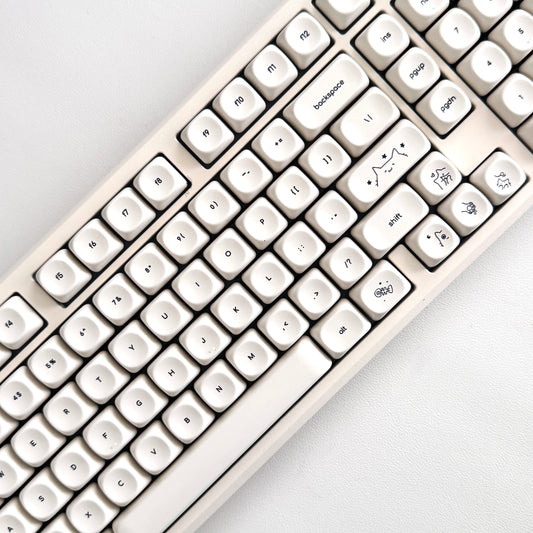

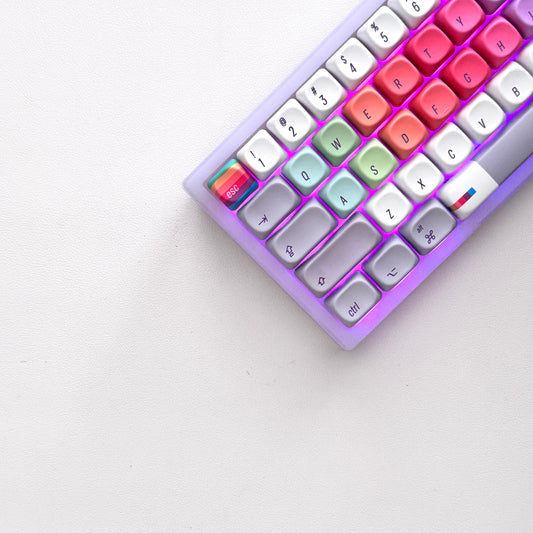


companions for the keys.
40oz of stainless steel, engraved one at a time. Four colorways, four moods.
-
セール
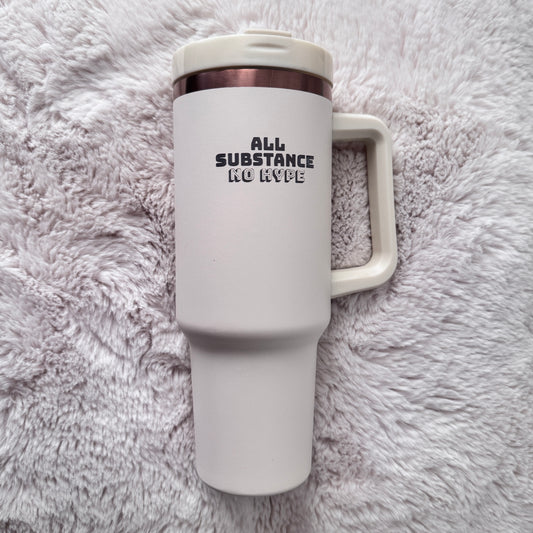
All Substance · Cream
セール価格 $45.00 通常価格$60.00 -
セール
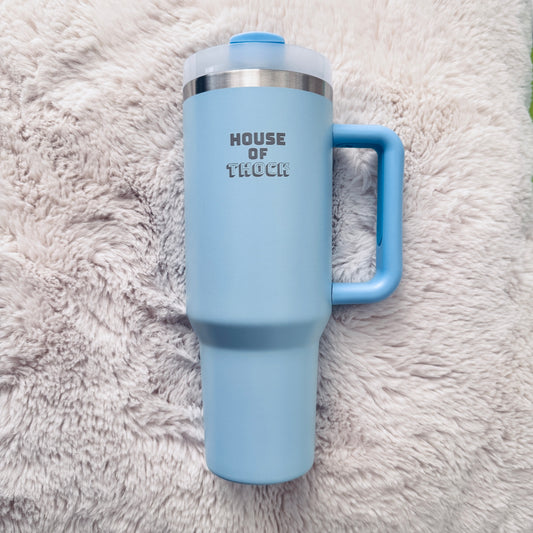
House of Thock · Powder Blue
セール価格 $40.00 通常価格$60.00 -
セール
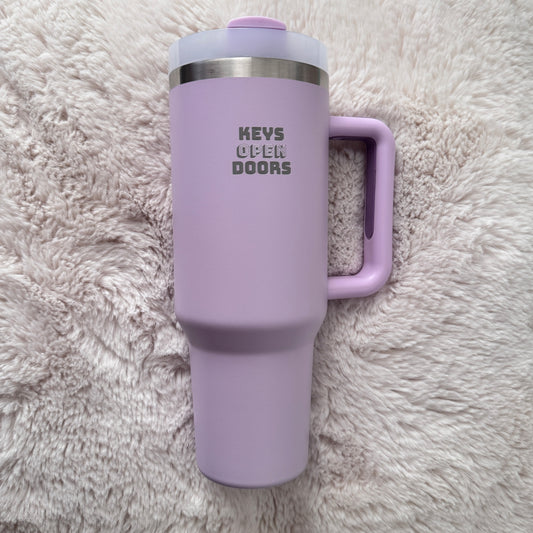
Keys Open Doors · Lilac
セール価格 $40.00 通常価格$60.00 -
セール
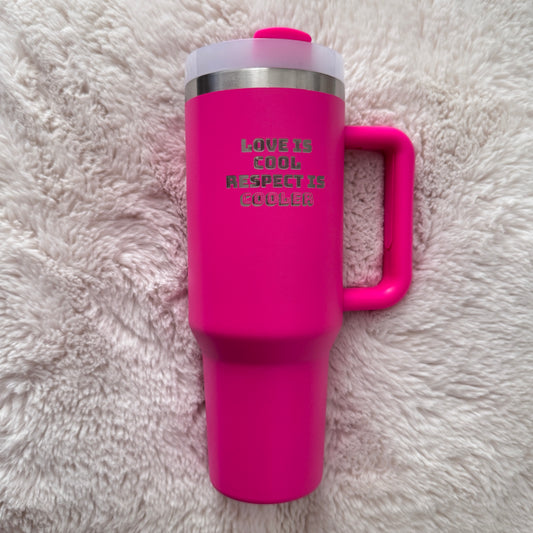
Love Is Cool · Hot Pink
セール価格 $40.00 通常価格$60.00
companions included.
Keyboard-and-tumbler pairs, matched by mood — $20 kinder than buying separately.


