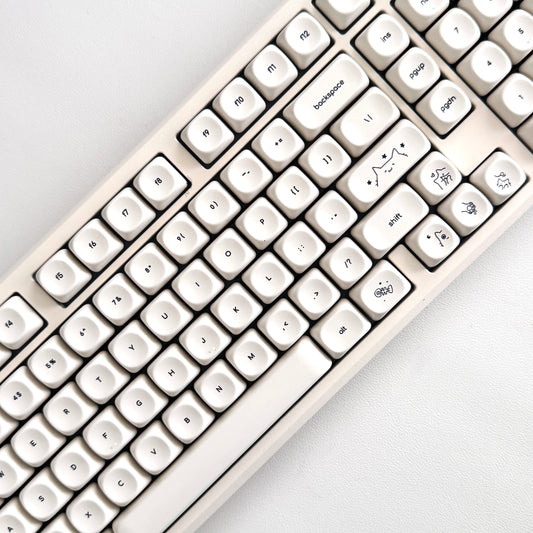
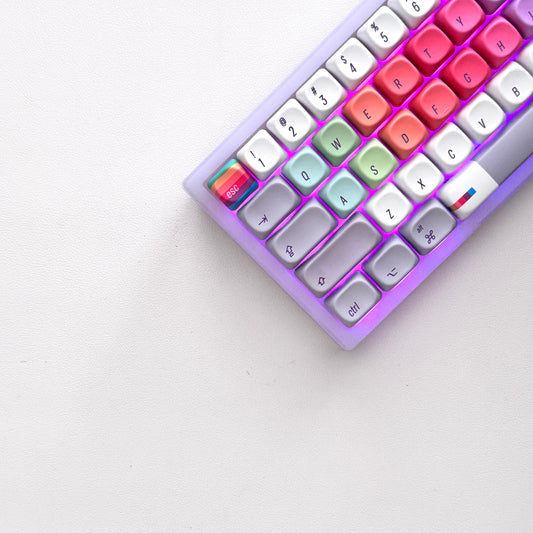
A Guide to the Compact Pro 67 Keyboard

Quick Start Guide

What's in the Box

  • 67-Key Compact Mechanical Keyboard (QMK/VIA Compatible)
  • USB-C to USB-A Braided Cable (1.5m)
  • 2.4GHz Wireless Receiver
  • Switch Puller Tool
  • Keycap Puller Tool

First-Time Setup

Ready to Use: Your keyboard is pre-charged and ready for immediate wireless use. VIA programmability available via usevia.app
  1. Remove protective film from keyboard
  2. Power on keyboard using mode switch on back
  3. Select connection mode (Bluetooth/2.4GHz/Wired)
  4. For Mac: Long press FN + WIN for 3 seconds to toggle Mac/Win mode
  5. Pair with your device using instructions below
  6. Optional: Configure custom key mappings via VIA software

Connection Modes

Bluetooth Mode (3 Devices)

  1. Switch mode toggle to Bluetooth position
  2. Long press FN + Q (Device 1), FN + W (Device 2), or FN + E (Device 3) until FN key blinks white
  3. Select "BT Keyboard" in device Bluetooth settings
  4. FN key stops blinking when paired successfully
  5. Switch between paired devices: Press corresponding FN + Q/W/E (quick press)
Pro Tip: FN key blinking white means pairing mode is active. If battery is below 10%, charge for 15-20 minutes before pairing. Use VIA to create custom device-specific layouts for each paired device.

2.4GHz Wireless Mode

  1. Switch mode toggle to 2.4G position
  2. Insert 2.4GHz receiver into computer USB port
  3. Keyboard connects automatically
  4. Connection indicator shows solid when connected

Wired Mode

  1. Insert USB-C cable into keyboard and computer
  2. Switch mode toggle to wired position
  3. Keyboard activates immediately with default RGB effect
  4. VIA configuration requires wired connection

Keyboard Layout & Function Keys

Compact 67-Key Layout

  • Standard QWERTY layout
  • Dedicated arrow keys (no function layer required)
  • Delete, Page Up, Page Down keys
  • Programmable volume knob with push-to-mute
  • F1-F12 accessible via FN layer (or remap with VIA)
  • All keys fully programmable via VIA software

Windows Mode - Default FN Combination Keys

Key Combination Function VIA Customizable
FN + ESC Grave accent (`~) Yes
FN + 1-9 F1-F9 Yes
FN + 0 F10 Yes
FN + - F11 Yes
FN + = F12 Yes
FN + DEL Insert Yes
FN + PGUP Home Yes
FN + PGDN End Yes
FN + WIN Lock/Unlock Windows key (long press 3s: toggle Mac/Win mode) Partial
FN + BACKSPACE Factory reset (hold 5 seconds) No

Mac Mode - Default FN Combination Keys

Key Combination Function VIA Customizable
FN + ESC Grave accent (`~) Yes
FN + 1 Screen Brightness Down Yes
FN + 2 Screen Brightness Up Yes
FN + 3 Task Control Yes
FN + 4 Control Pad Yes
FN + 7 Previous Track Yes
FN + 8 Play/Pause Yes
FN + 9 Next Track Yes
FN + 0 Mute Yes
FN + - Volume Down Yes
FN + = Volume Up Yes
FN + PGUP Home Yes
FN + PGDN End Yes
FN + WIN Long press 3s: toggle Mac/Win mode Partial
FN + BACKSPACE Factory reset (hold 5 seconds) No

Mac Compatibility

Toggle between Mac and Windows modes by long pressing FN + WIN for 3 seconds. When in Mac mode, keyboard functions optimize for macOS shortcuts and media controls. Use VIA to create dedicated Mac layouts with custom shortcuts for design applications.

VIA Software Setup

What is VIA?

VIA is web-based configuration software that lets you remap keys, create macros, adjust lighting, and program multiple layers without flashing firmware. Changes save directly to keyboard memory.

Accessing VIA

  1. Connect keyboard via USB-C cable (VIA requires wired connection)
  2. Open Chrome or Edge browser
  3. Navigate to usevia.app
  4. Click "Authorize device" when prompted
  5. Select "GMK67 Pro" from device list

Key Remapping

  1. In VIA interface, select the key you want to remap
  2. Choose new function from available options
  3. Changes save automatically to keyboard
  4. Test new mapping immediately
Pro Tip: Create application-specific layers for Figma, Adobe apps, or your code editor. Switch layers with programmable key combinations

Macro Programming

  1. Navigate to "Macros" tab in VIA
  2. Record key sequences or type commands
  3. Add timing delays between keystrokes
  4. Assign macro to any key
  5. Perfect for repetitive workflows and code snippets

Layer Configuration

VIA supports up to 4 programmable layers. Use layers to create different keyboard layouts for different tasks without changing physical keycaps.

Knob Programming

Remap the volume knob for custom functions:

  • Zoom control in design apps
  • Brush size adjustment
  • Timeline scrubbing
  • Horizontal/vertical scrolling
  • Custom macro triggers on press

RGB Backlighting

Basic RGB Control

Function Keys
Brightness Up FN + ↑
Brightness Down FN + ↓
Speed Increase FN + →
Speed Decrease FN + ←
Color Decrease FN + [{
Color Increase FN + ]}
Cycle RGB Modes FN + \|

Available RGB Modes

Cycle through multiple lighting effects including static colors, breathing, rainbow wave, reactive typing, and more. Each mode supports adjustable brightness, speed, and saturation.

VIA Lighting Control

Advanced RGB customization available in VIA software:

  • Per-key color assignment
  • Custom lighting animations
  • Layer-specific lighting
  • Save multiple lighting profiles
Battery Saver: Lower RGB brightness or turn off backlighting completely to extend battery life from 48 hours to 200+ hours

Volume Knob

Default Operation

  • Turn clockwise: Increase volume
  • Turn counter-clockwise: Decrease volume
  • Press down: Mute/unmute

VIA Programmability

Unlike the standard GMK67, the Pro version allows complete knob reprogramming via VIA:

  • Zoom in/out for design applications
  • Brush size control in Photoshop/Procreate
  • Timeline scrubbing in video editors
  • Horizontal or vertical scrolling
  • Custom macro execution on press
  • Layer switching
Getting Started: Connect via USB-C, open VIA, navigate to the rotary encoder section to remap knob functions. Changes save instantly to keyboard memory.

Battery & Charging

Battery Specifications

  • With RGB enabled: Approximately 48 hours
  • With RGB disabled: 200+ hours
  • Charging time: Approximately 3 hours to full capacity
  • Low battery indicator: Second LED next to FN key flashes red when below 10%

Power Query

Check battery level: Press FN + SHIFT + R

  • Keys 1-0 light up to show percentage (each key = 10%)
  • Green: 60-100% battery
  • Yellow: 30-59% battery
  • Red: Below 30% battery

Charging Indicator

  • Red light on: Charging in progress
  • Green light on: Fully charged
  • Red light blinking: Low battery (below 10%), charge immediately

Charging Instructions

  1. Connect USB-C cable to keyboard and power source
  2. Charging indicator lights red
  3. Continue using keyboard while charging (supported)
  4. Indicator turns green when fully charged
Sleep Mode: Keyboard enters sleep mode after period of inactivity. Press any key to wake. If keyboard won't wake, charge for 15-20 minutes

Power Management Tips

  • Lower RGB brightness to extend battery life
  • Use wired mode for unlimited power during long sessions
  • Charge before battery drops below 10% for optimal battery health
  • VIA programming requires wired connection

need support?

Let's get you up and running. Talk to us.

frequently asked questions

Can I game on a 65% keyboard?

Yes. Most games use WASD and nearby keys, all present on 65% layouts. Arrow keys are accessible, and you can program gaming-specific macros to any key combination.

How do I access F-keys without a function row?

Hold FN and press the corresponding number key. FN + 1 = F1, FN + 2 = F2, etc. After a few days, this becomes automatic muscle memory.

Are 65% keyboards good for long nails?

Excellent for long nails. The compact layout reduces reaching, keeps your hands centered, and maintains consistent nail-to-key angles. Less stretching means cleaner actuation and reduced stress on nail extensions.

What about arrow keys for coding?

65% keyboards include dedicated arrow keys - no function layer required. Perfect for navigating code, selecting text, and moving through terminal commands. Unlike 60% boards, you get immediate arrow access without memorizing key combinations.

Is 65% too small for productivity work?

For focused work, 65% often increases productivity by keeping everything in reach. The learning curve is 3-7 days. Once mastered, most users find they're faster than on full-size boards because hands stay positioned over home row.

Can I use 65% keyboards for spreadsheets without a numpad?

Yes. Top row numbers work fine for light data entry. For heavy spreadsheet work, consider adding a separate USB numpad that you position exactly where needed, then remove when not in use.

What's the difference between 60% and 65% keyboards?

65% adds dedicated arrow keys and a few extra keys (typically Del, Page Up/Down) without requiring function layers. The tradeoff is slightly larger footprint. 60% is more compact, 65% is more convenient for navigation-heavy workflows.

Do 65% keyboards work with both Mac and Windows?

Yes. Most 65% keyboards support both operating systems. You may need to swap keycaps or adjust keymapping via software, but functionality remains identical across platforms.

How long does it take to adjust to 60% from full-size?

Most users adjust within 3-7 days. Day 1-2 feels frustrating. Days 3-5 start feeling natural. By week 2, full-size keyboards feel unnecessarily large. The key is committing fully rather than switching back and forth.

Are wireless 65% keyboards reliable for professional work?

Modern wireless 65% keyboards offer 2.4GHz dongles with 1-3ms latency, indistinguishable from wired. Bluetooth adds slight latency (8-15ms) but remains fine for coding and productivity. Battery life typically exceeds 40 hours with RGB enabled.

Will this work with Figma/Adobe/Sketch shortcuts?

Yes. All modifier keys present. Custom shortcuts work identically to full-size boards. Function layer provides access to F-keys for application-specific commands.

Can I remap the knob function?

Not on our mechanical frame boards. The knob is hardware-dedicated to volume control. RGB adjustments via FN layer combinations.

What does the volume knob control?

Volume only. Turn to adjust, press to mute. RGB controls are FN + arrow combinations. Simple, immediate, tactile.

FN key blinking white - what does it mean?

White blinking indicates pairing mode. This happens when you've pressed FN + Q/W/E to pair a Bluetooth device, the keyboard lost connection, or battery is critically low (under 10%). Complete pairing in your device settings, press any key to wake, or charge for 15-20 minutes. Factory reset: Hold FN + BACKSPACE for 5 seconds.

How long does the battery last?

Approximately 48 hours with RGB enabled, 200+ hours with RGB disabled. Battery life varies based on RGB brightness and connection mode.

Can I use this while charging?

Yes, connect USB-C cable and continue typing. Charging takes approximately 3 hours to full capacity.

How many devices can I pair?

Three Bluetooth devices (FN + Q/W/E). Switch between them instantly using the same key combinations.

Does this work with iPad/Android tablets?

Yes, connects via Bluetooth or USB-C (with compatible adapter) to any device supporting external keyboards.

What's the difference between wired and 2.4GHz modes?

Wired provides unlimited power and zero battery concerns. 2.4GHz offers wireless freedom with gaming-grade latency (typically 1-3ms). Bluetooth adds multi-device switching but slightly higher latency (8-15ms).

Long nail compatibility?

Excellent. Centered hand position, consistent actuation angles, and knob control accommodate nail length naturally. Less reaching, cleaner typing.