

A Guide to the Ergo Alice 80 Wired Keyboard
need support?
frequently asked questions
How do I switch between RGB color modes?
Navigate to "Effect" in the LCD menu to choose from 20 lighting effects. You can also use FN + \| to cycle through effects via keyboard shortcuts. Adjust brightness (FN + ↑/↓), speed (FN + ←/→), and color (FN + TAB) with keyboard shortcuts.
How do I switch between Bluetooth devices?
Three Bluetooth devices (BT1, BT2, BT3). Navigate to "Connect" in LCD menu, select desired BT channel, and hold the knob for 5 seconds to enter pairing mode. The pairing name is "LB-K108PRO".
How do I use this keyboard with a Mac?
Navigate to "System" in the LCD menu and select WIN, MAC, iOS, or Android. The keyboard automatically adjusts modifier key positions and function mappings for the selected system.
How many devices can I pair?
Three Bluetooth devices (BT1, BT2, BT3). Navigate to "Connect" in LCD menu, select desired BT channel, and hold the knob for 5 seconds to enter pairing mode. The pairing name is "LB-K108PRO".
How do I know when the battery is low?
Red light shows when battery level drops below 20%. Connect USB cable to charge. Red light remains on while charging.
Why won't my 2.4GHz connection work?
Ensure you've selected "Connect" - "2.4G Mode" in the LCD menu before plugging in the receiver. If pairing fails, scroll to "2.4G Mode" and press and hold the knob for 5 seconds to enter pairing mode. Keep the receiver within 20cm of the keyboard during pairing.
Will this work with Figma/Adobe/Sketch shortcuts?
Yes. All modifier keys present. Custom shortcuts work identically to full-size boards. Function layer provides access to F-keys for application-specific commands.
How do I control volume?
Toggle the knob function using FN + Scroll Wheel to switch to Volume mode, then rotate the knob clockwise to increase volume or counterclockwise to decrease. You can also navigate to "Volume" in the LCD menu.
Can I use this while charging?
Yes, connect USB-C cable and continue typing. Charging takes approximately 3 hours to full capacity.
Does this work with iPad/Android tablets?
Yes. Connect via Bluetooth and select the appropriate system in the LCD menu (iOS for iPads, Android for Android tablets). The keyboard supports all devices with external keyboard capability.
What's the difference between wired and 2.4GHz modes?
Wired provides unlimited power and zero battery concerns. 2.4GHz offers wireless freedom with gaming-grade latency (typically 1-3ms). Bluetooth adds multi-device switching but slightly higher latency (8-15ms).
Long nail compatibility?
Excellent for long nails. The centered typing position keeps hands naturally aligned, and the dedicated number pad means you're not reaching across smaller layouts. Consistent key spacing and standard finger positioning reduce strain on nail extensions. The gasket structure provides a soft, delicate feel that's comfortable for extended typing sessions.
Creamy Keycaps & Wireless Keyboards
-
The Ultra Violet キーボード - Series 06
通常価格 $340.00 USDから通常価格$280.00 USDセール価格 $340.00 USDから -
The Ultra Violet キーボード - Series 06
通常価格 $175.00 USDから通常価格$280.00 USDセール価格 $175.00 USDからセール -
The Ultra Violet キーボード - Series 06
通常価格 $195.00 USDから通常価格$280.00 USDセール価格 $195.00 USDからセール -
The Atlas Keyboard
通常価格 $195.00 USDから通常価格$280.00 USDセール価格 $195.00 USDからセール

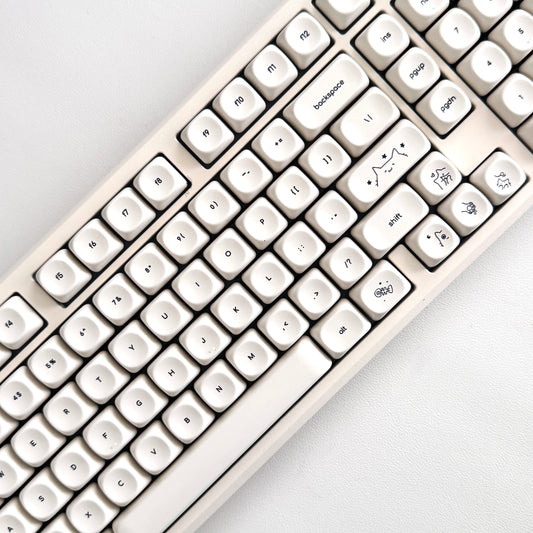

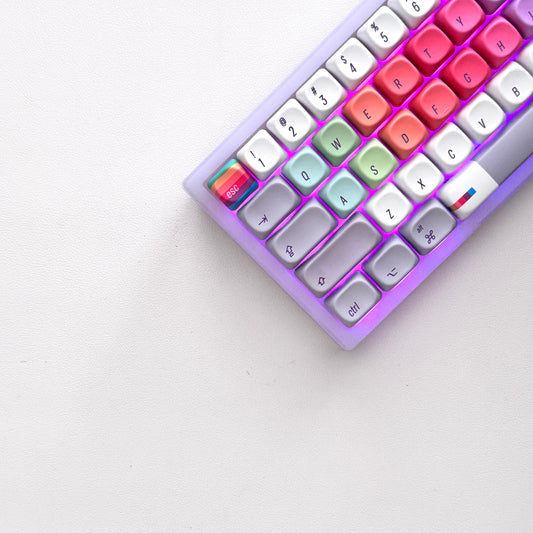


companions for the keys.
40oz of stainless steel, engraved one at a time. Four colorways, four moods.
-
セール

All Substance · Cream
セール価格 $45.00 通常価格$60.00 -
セール
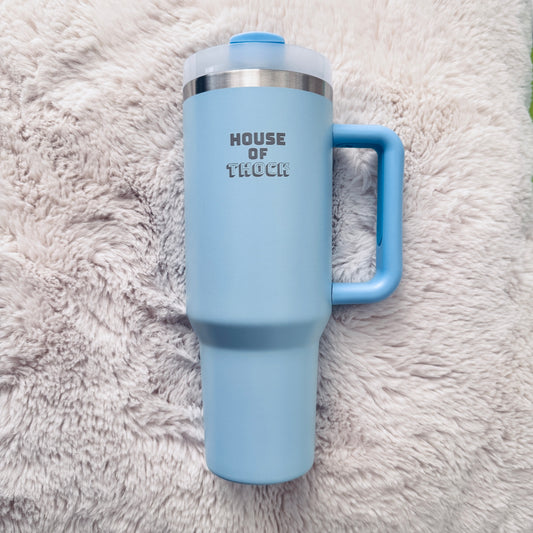
House of Thock · Powder Blue
セール価格 $40.00 通常価格$60.00 -
セール
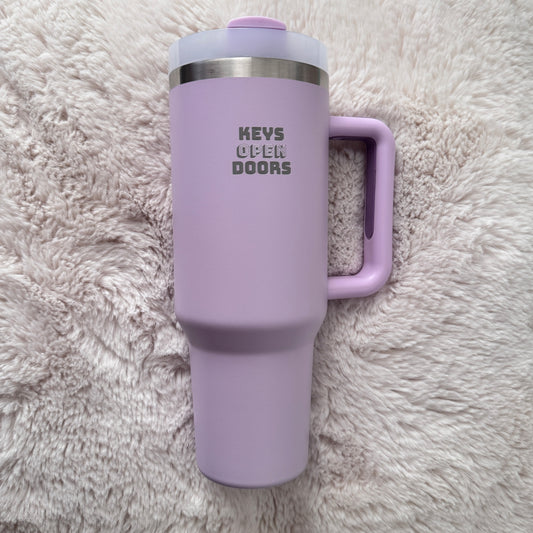
Keys Open Doors · Lilac
セール価格 $40.00 通常価格$60.00 -
セール
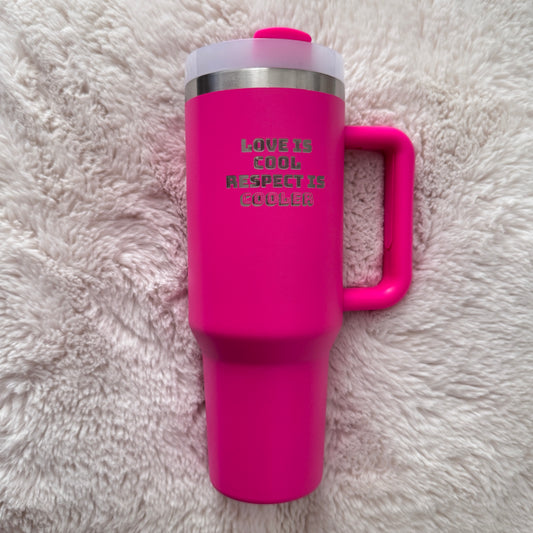
Love Is Cool · Hot Pink
セール価格 $40.00 通常価格$60.00
companions included.
Keyboard-and-tumbler pairs, matched by mood — $20 kinder than buying separately.


