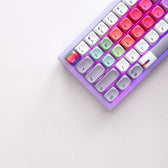



A Guide to the Compact Keyboard
need support?
frequently asked questions
What's in the box?
The keyboard, a detachable USB-C cable, and a keycap puller.
How do I connect it?
Plug the USB-C cable into the keyboard and your computer. It's recognized right away, no drivers needed to start typing.
Does it need a battery?
No. This board is wired only, so there's no battery to charge and no wireless mode to set up.
How do I change the lighting effect?
Press FN + Right Ctrl to cycle through the 18 built-in lighting effects.
How do I change the rim light around the case?
Press FN + Left Ctrl. The rim light runs separately from the key lighting, so you can set each one differently.
How do I change the keyboard to a single color?
Press FN + Space to bring up the color palette. Each key lights up showing a different color option. Press whichever key shows the color you want, and every key on the board switches to match it.
How do I adjust the brightness?
FN + Insert brightens, FN + Delete dims. Brightness steps through off, 33%, 66%, and 100%, starting at 100% by default.
Will my lighting and color choices save?
Yes. The keyboard saves your last setup on its own, so everything is exactly how you left it the next time you plug in.
Does it work on Mac?
Yes, it works with Windows, Mac, and Linux over USB. The lighting-settings app is Windows only, but none of the FN combinations need it.
How do I reset it to factory settings?
Hold FN + Backspace for 3 seconds. This clears your saved lighting and color choices and starts over from the defaults.
Is this good for long nails?
Yes. The compact layout keeps everything in reach, so your hands stay centered and your nail to key angle stays consistent, with less stretching and cleaner typing.
The keyboard isn't responding at all, what do I check?
Try a different USB port and make sure the cable is fully seated at both ends. If it still doesn't respond, try a different USB-C cable, since some cables are charge only and don't carry data.
Is there driver software?
Yes, for more lighting and backlight settings you can download the driver from the manufacturer's site. It's Windows only. Everything in this guide works without it, on any operating system.
A key stopped registering, what do I do?
Try a different USB port and cable first, then a factory reset (FN + Backspace, hold 3 seconds). If a key still isn't registering, reach out to support.
Creamy Keycaps & Wireless Keyboards
-
The Ultra Violet キーボード - Series 06
通常価格 $340.00 USDから通常価格$280.00 USDセール価格 $340.00 USDから -
The Ultra Violet キーボード - Series 06
通常価格 $175.00 USDから通常価格$280.00 USDセール価格 $175.00 USDからセール -
The Ultra Violet キーボード - Series 06
通常価格 $175.00 USDから通常価格$280.00 USDセール価格 $175.00 USDからセール -
The Atlas Keyboard
通常価格 $195.00 USDから通常価格$280.00 USDセール価格 $195.00 USDからセール

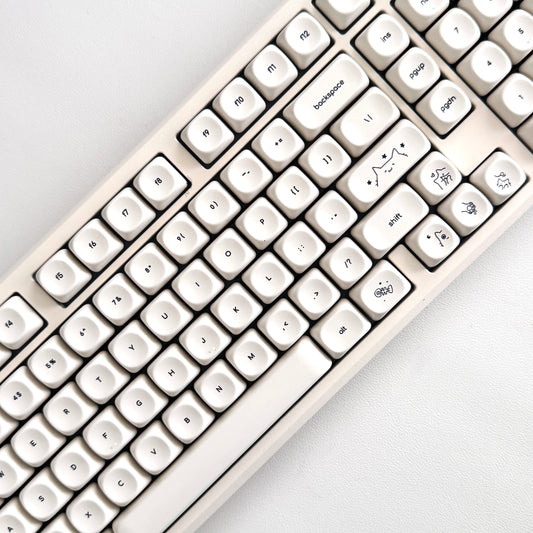


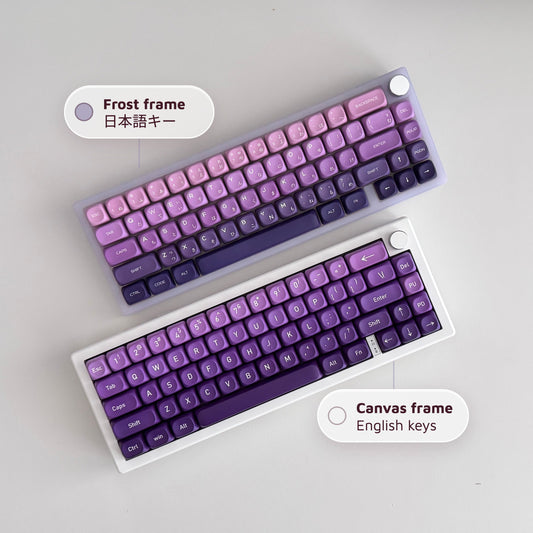


companions for the keys.
40oz of stainless steel, engraved one at a time. Four colorways, four moods.
-
セール

All Substance · Cream
セール価格 $45.00 通常価格$60.00 -
セール

House of Thock · Powder Blue
セール価格 $40.00 通常価格$60.00 -
セール

Keys Open Doors · Lilac
セール価格 $40.00 通常価格$60.00 -
セール

Love Is Cool · Hot Pink
セール価格 $40.00 通常価格$60.00
companions included.
Keyboard-and-tumbler pairs, matched by mood — $20 kinder than buying separately.


admit one
tips, not spam
Short notes that make every new board feel easy.
