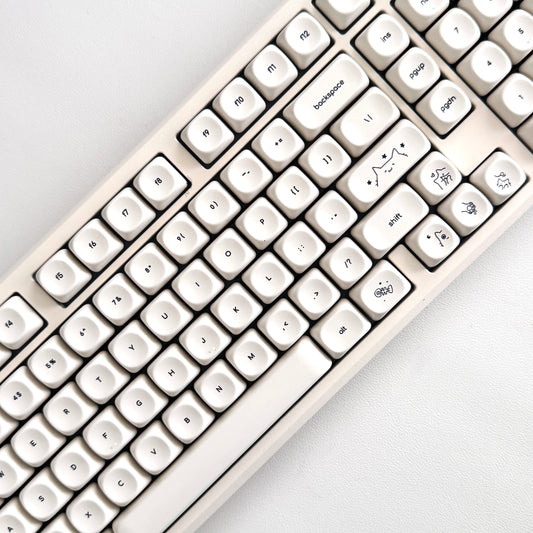
A Guide to The Ergo Alice 80 Wired Keyboard

Quick Start Guide

What's in the Box

  • Ergonomic Full Size Mechanical Keyboard
  • USB-C to USB-C Braided Cable (1.5m)
  • Switch Puller Tool
  • Keycap Puller Tool

First-Time Setup

Ready to Use: Plug in and type. No drivers required for basic functionality.
  1. Connect USB-C cable to keyboard and computer
  2. Set the physical Mac/Win toggle to your operating system
  3. Keyboard activates with default RGB effect when connection is successful

Mac/Win Toggle

Use the physical switch on the keyboard to select your operating system. Mac optimizes the F-row for macOS media and brightness controls. Win optimizes for Windows shortcuts. This determines how FN layer shortcuts behave.

Connection

Wired USB

  1. Connect USB-C cable to keyboard
  2. Connect USB-C end to computer
  3. Set physical mode switch to the wired position (toward the USB-C icon)
  4. Keyboard activates immediately — RGB backlight turns on to confirm connection
Note: If the keyboard doesn't respond after plugging in, ensure the mode switch is set to the wired/USB position.

Color & Backlighting

Key Backlight Controls

Function Keys
Colour Switch FN + Space or FN + Del
Backlight Mode Cycle FN + Home
Backlight On/Off FN + L
Brightness Up FN + ↑
Brightness Down FN + ↓
Speed Up FN + →
Speed Down FN + ←

Trim Strip Controls

Function Keys
Strip Brightness Increase FN + + (Numpad)
Strip Brightness Decrease FN + - (Numpad)
Strip Lighting Increase FN + Page Up
Strip Lighting Decrease FN + Page Down
Two-Zone Lighting: Key backlight and the decorative trim strip are controlled independently. Each can run different colors, modes, and brightness simultaneously.

Volume Knob

Basic Operation

  • Turn clockwise: Increase volume
  • Turn counter-clockwise: Decrease volume
  • Press down: Mute/unmute
Note: The volume knob is hardware-dedicated to volume control and cannot be reprogrammed.

Keyboard Layout & Function Keys

Ergonomic Full Size Layout

  • Each half of the keyboard angles inward toward the center — your hands sit in a natural position without twisting your wrists. It's one connected board, not two separate pieces.
  • Dedicated F-row (F1-F12) — no FN layer required for function keys
  • Dedicated arrow keys and full navigation cluster
  • Numpad on right side for number entry
  • Split spacebar for natural thumb positioning
  • Volume knob top-right
  • Decorative RGB trim strip on keyboard body

FN Combination Keys

Key Combination Function
FN + ESC (hold 3s) Factory data reset
FN + F1 Screen brightness decrease
FN + F2 Screen brightness increase
FN + F3 Multi-task controller
FN + F4 Program listing
FN + F7 Previous track
FN + F8 Play/Pause
FN + F9 Next track
FN + F10 Mute
FN + F11 Volume down
FN + F12 Volume up
FN + L Backlight colour switch
FN + Page Up Strip lighting increase
FN + Page Down Strip lighting decrease
FN + Home Backlight mode switch
FN + Space Backlight colour switch
FN + - (Numpad) Trim strip brightness decrease
FN + + (Numpad) Trim strip brightness increase
Key Combination Function
FN + ESC (hold 3s) Factory data reset
FN + F1 Open file manager
FN + F2 Open web home page
FN + F3 Calculator
FN + F4 Open default media player
FN + F5 Previous track
FN + F6 Next track
FN + F7 Play/Pause
FN + F8 Stop
FN + F9 Mute
FN + F10 Volume down
FN + F11 Volume up
FN + F12 Open mail client
FN + Win Win key lock/unlock
FN + L Backlight on/off
FN + Page Up Strip lighting increase
FN + Page Down Strip lighting decrease
FN + Home Backlight mode switch
FN + Space Backlight colour switch
FN + Del Backlight colour switch
FN + - (Numpad) Trim strip brightness decrease
FN + + (Numpad) Trim strip brightness increase

need support?

Let's get you up and running. Talk to us.

frequently asked questions

Is this good for long nails?

Excellent. The ergonomic angle is genuinely better for long nails than straight keyboards. Natural wrist position, centered hand placement, and reduced lateral reach all contribute to cleaner typing with nail extensions.

What's the factory reset procedure?

Hold FN + Backspace for 3 seconds. The keyboard will reset to default settings including RGB effects and key mappings.

Can I use this for spreadsheets without a numpad?

Yes. Top row numbers work fine for light data entry. For heavy spreadsheet work, consider adding a separate USB numpad positioned where it feels natural.

Will this work with Figma/Adobe/Sketch shortcuts?

Yes. All modifier keys present. F-keys accessible via FN layer. Custom shortcuts work identically to standard keyboards once you adjust to the ergonomic layout.

Can I use this for gaming?

Yes. WASD, arrow keys, and all standard gaming keys are present. FN + W toggles a directional keys interchange mode, remapping WASD to arrows for alternate configurations.

Is the split spacebar difficult to use with long nails?

No — it's actually more comfortable. Each thumb naturally rests closer to its respective spacebar half, requiring less reach and reducing awkward nail angles on the spacebar edge.

Will this work with both Mac and Windows?

Yes. Use the physical Mac/Win toggle switch to optimize the keyboard for your operating system. Mac mode maps FN combinations to macOS media and brightness controls. Windows mode maps them to F-keys and Windows-specific functions.

How do I access F-keys?

Hold FN and press the corresponding number key. FN + 1 = F1, FN + 2 = F2, etc. After a few days, this becomes automatic muscle memory.

Does it have arrow keys?

Yes, dedicated arrow keys are included — no function layer required.

How long does it take to adjust from a standard keyboard?

Most users adjust within 1-2 weeks. The angled layout feels unfamiliar at first, but muscle memory recalibrates quickly. The key is committing fully rather than switching back and forth. By week 2, straight keyboards start feeling unnecessarily stiff.

What makes this an ergonomic keyboard?

Each half of the keyboard angles inward toward the center so your hands sit in a natural, relaxed position without twisting your wrists. It's one connected board — not two separate pieces. The difference shows up within your first hour of typing.